

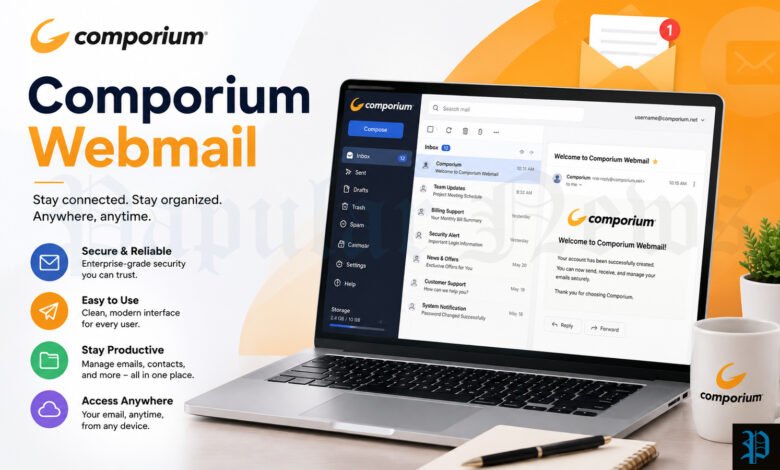
Email is still the main way we get bills, school news, job offers, and messages from family. If you use Comporium for your internet, you probably have a Comporium email address too. You can read that email from any browser with Comporium Webmail, so you do not need to install anything. This guide explains what Comporium Webmail is, where to sign in, and how to fix the most common problems. You will also find the official mail settings, tips for your phone, ways to cut down on spam, and simple steps to keep your account safe. Everything is written in plain English, so you can follow it even if you are new to email.
What Is Comporium Webmail
Comporium Webmail is the web version of the email service that comes with Comporium internet. Comporium is a telecommunications company based in South Carolina. It offers internet, TV, phone, and home security services in parts of the Carolinas. With Comporium Webmail, you open a web page, sign in, and see your inbox right away. You can read, write, and sort messages on a laptop, a tablet, or a phone.
Your Comporium email address usually ends with comporium.net. Reports from tech guides say the webmail system runs on Zimbra, a well-known email platform. That is why the page looks like a classic inbox with folders on the left and your messages in the middle. You do not need to know how it works behind the scenes. You only need your full email address and your password.
Who Can Use Comporium Webmail
Comporium Webmail is made for Comporium customers who have a comporium.net email address. Comporium has said it offers email as part of its high-speed internet service. If you pay for internet at home, you can often set up an address through your online account. If you are not sure whether you have an address, check your welcome papers or your online account page.
You do not need to be at home to use it. The webmail page works over any internet connection, so you can check your mail at work, at a library, or while you travel. This is a big plus. Some email programs only work on the computer where you set them up. Webmail follows you wherever you go. Just remember to sign out when you use a shared computer.
Comporium Webmail Login Page and Web Address
The main web address for Comporium Webmail is webmail.comporium.net. Comporium also lists webmail in the Support menu on its main website. Some guides mention a second sign-in portal at login.comporium.net. If one page does not load, you can try the other. Type the address by hand instead of clicking a link in an email. This protects you from fake pages that try to steal passwords.
The login page is simple. You will see a box for your email address, a box for your password, and a sign-in button. There is also a link for a forgotten password. Save the page as a bookmark in your browser. That way, you can reach it in one click next time. Make sure the address starts with https and ends with comporium.net before you type anything.
How to Sign In Step by Step
Signing in takes less than a minute. Follow these steps and you should reach your inbox without trouble.
- Open your browser. Chrome, Firefox, Safari, and Edge all work well.
- Type webmail.comporium.net in the address bar and press Enter.
- Type your full email address, for example yourname@comporium.net.
- Type your password. Check that Caps Lock is off.
- Click the sign-in button.
If the details are right, your inbox opens. Comporium says you must use the full email address, not just the first part. This is a very common mistake. If you type only “yourname”, the system will not know which account you mean. Also try to avoid saving your password on a shared device. If your browser asks to save it, choose “Never” on any computer that is not yours.
Tips for a Smooth Login
A few small habits can save you a lot of stress. First, keep your browser up to date. Old browsers can break parts of a web page, and the sign-in button may not work. Second, use a private or incognito window if the page acts strangely. This window does not use old saved data, so it often solves odd problems. Third, write your password in a safe place or use a password manager, so you do not have to guess.
It also helps to check your internet connection before you blame the email page. Try opening another site. If other sites load, the problem is likely with your account or the email service. If nothing loads, restart your router and try again. Finally, do not type your password too fast on a phone. Autocorrect can change letters and add spaces, and that causes many “wrong password” messages.
What to Do If You Forgot Your Password
Everyone forgets a password sometimes. On the login page, look for the “Forgot password” link and follow the steps on the screen. Several guides also say that you manage your password through your My Comporium account, which is the online page where you handle your services. If you have not signed in there before, you may need to register first. Have your account details ready, such as your name and the address on your bill.
After you reset the password, wait a few minutes before you sign in again. The new password needs a little time to work everywhere. Then update the password in any apps on your phone or computer. Many people forget this step. Their phone keeps trying the old password, and the account gets stuck. When you choose a new password, make it long. A short phrase of four or five random words is easy to remember and hard to guess.
Common Login Problems and Easy Fixes
Most sign-in problems come from a few simple causes. The most common one is a wrong password or a typing mistake. Check for extra spaces and make sure Caps Lock is off. Another cause is using only part of the email address. Always type the full address. A third cause is an old password saved in your browser. Clear the saved login and type the password by hand.
If those steps do not work, try these fixes:
- Clear your browser cache and cookies, then close and reopen the browser.
- Try another browser or a private window.
- Turn off browser add-ons for a minute. Ad blockers can sometimes block parts of a login page.
- Restart your computer and your router.
- Check that your date and time are correct on your device.
Some guides also suggest turning off your firewall or antivirus for a short test. Do this only if you know how, and turn it back on right away. If the problem stays, the issue is probably on the account side. In that case, contact Comporium support, which we cover later in this guide.
What to Do When Comporium Webmail Is Down
Sometimes the problem is not on your side at all. Email services can go down for repairs or because of a technical fault. If the login page does not load for you, try it on another device, such as your phone using mobile data. If it fails there too, the service may be down. Stay calm. Most outages are fixed within a short time.
While you wait, check the Comporium website or its social pages for news. You can also ask a neighbor who uses Comporium if they have the same trouble. Avoid trying your password again and again. Too many wrong tries can lock the account for a while. Wait about fifteen to thirty minutes, then try once more. If the service is still down after a few hours, call support and report the problem.
Main Features of Comporium Webmail
Comporium Webmail gives you the tools you need for daily email. You can send and receive messages, add attachments, and sort mail into folders. You can search your mailbox by name, subject, or word. There is also an address book for your contacts, so you do not have to type each address again. Guides say you can set up filters in the preferences area, which move certain emails into certain folders on their own.
The page works on desktop and mobile browsers, which is helpful when you are away from your computer. The look is clean and simple, and it does not push many ads at you. That makes it easy to focus on your mail. Webmail is not as fancy as some big email brands. Still, it does the main job well, and it comes with your internet plan at no extra email fee that we know of. Check your own plan for the latest details.
How to Manage Spam and the Junk Folder
Spam is a part of life online. Comporium has worked to reduce it. In May 2022, Comporium updated its email platform with a more advanced spam solution. After that update, people can manage spam straight from the Junk folder in webmail. Comporium also stopped sending the Daily Digest. That was an older email that listed blocked messages. Now you simply open the Junk folder to see what was caught.
Check the Junk folder now and then. Sometimes a real message ends up there by mistake. If you find one, mark it as not junk and move it to your inbox. This teaches the filter that you want mail from that sender. For real spam, do not click links or open files. Delete the message instead. Never reply to a spam message, because a reply shows the sender that your address is active.
Email Limits You Should Know
Comporium sets limits on the email service, and it helps to know them. According to the Comporium email setup page, the main limits are:
| Item | Limit |
|---|---|
| Biggest attachment | 20 MB |
| Mailbox size | 5 GB |
| People in one message | 200 addresses |
| Sending speed | 200 messages in 30 minutes |
The sending limit is there to fight spam and viruses. Many internet companies use a rule like this. For most people, these limits are more than enough. A normal user will never send 200 emails in half an hour. But if you share big photos or videos, 20 MB can fill up fast. In that case, use a file-sharing service and send a link instead. Also watch your mailbox size. When the 5 GB is full, new mail may stop arriving.
Comporium Email Settings for Outlook, Thunderbird, and Other Apps
You do not have to use the web page. You can also read Comporium email in an app such as Outlook or Thunderbird. To do this, you need the right server settings. Comporium lists them on its official email setup page. The settings are the same for most apps. For all of them, use your full email address and your password to sign in.
Here are the official settings:
| Setting | IMAP | POP3 |
|---|---|---|
| Incoming server | mail.comporium.net | mail.comporium.net |
| Incoming port | 993 | 995 |
| SSL | On | On |
| Outgoing server | smtp.comporium.net | smtp.comporium.net |
| Outgoing port | 465 | 465 |
| Sign-in needed | Yes | Yes |
If you are not sure which one to pick, choose IMAP. IMAP keeps your mail on the server and syncs it across all your devices. When you read a message on your phone, it shows as read on your laptop too. POP3 downloads mail to one device and is better for a single computer. If a setting is wrong, you will often see a “cannot connect” error. Check the server names and the port numbers first.
Set Up Comporium Email on iPhone and Android
Setting up email on your phone lets you check messages anywhere. On both iPhone and Android, you add a new mail account and choose the “Other” or manual option. Then you type your name, your full Comporium email address, and your password. After that, the phone asks for the server details. Use the same incoming settings from the table above.
For the outgoing server, Comporium lists slightly different defaults for phones. On iPhone, the default is smtp.comporium.net with port 587, SSL on, and sign-in required. On Android, the default is smtp.comporium.net with port 465, SSL on, and sign-in required. If your phone cannot send mail, check this part first. Also check that you typed the full email address as the user name. If you changed your password, update it in the phone settings too.
Webmail or Email App: Which One Is Better
Both ways work well, and the best choice depends on how you live. Webmail is great when you use many devices or share a computer. You do not set anything up, and you always see the newest mail. It is also a good fallback when your app stops working. If your app shows an error, try webmail first. If webmail works, you know your account is fine and the app settings are the problem.
An email app is better if you want all your accounts in one place. Apps can also work in the background and send you alerts. Some let you read old mail without internet. The downside is the setup. You must enter the right settings, and you must update the password in each app when it changes. Many people use both. They use the app on their phone each day and webmail when they travel.
Tips to Keep Your Account Safe
Your email holds a lot of private information, so protect it. Use a strong password that you do not use on other sites. If one site leaks your password, thieves will try it on your email next. Change your password if you think someone else knows it. Also be careful with emails that ask for your password. Comporium will not ask you to send your password in a message.
Watch out for phishing. These are fake emails that look real. They may say your account will close unless you click a link. Do not click it. Go to the official page by typing the address yourself. Be careful with unknown attachments too, even if they seem to come from a friend. When you use a public computer, always sign out and close the browser. These small habits protect you much better than any tool.
How to Keep Your Mailbox Fast and Tidy
A large, messy mailbox can load slowly. If your webmail feels slow, try cleaning it. Start with the biggest messages, which are usually those with photos or files. Save the files you need on your computer, then delete the emails. Next, empty the Junk and Trash folders. Deleted mail often stays in the Trash and still counts toward your 5 GB limit.
Create folders for the things you want to keep, such as bills, school mail, and travel plans. Then set up filters so that new mail goes to the right folder on its own. This keeps your inbox short and easy to scan. Try to spend ten minutes each week on a quick clean-up. A small habit like this prevents a big, scary pile later. It also makes it easier to find an old message when you need it.
How to Contact Comporium Support
If you tried the steps above and still cannot sign in, ask Comporium for help. Comporium has a Help Center on its website with articles on many email topics. For a person to talk to, Comporium has shared a customer phone line for email problems on its own website. Phone numbers can change, so check the contact page on the official site for the newest one before you call.
Have some details ready when you contact support. Give your full email address, a short note about the problem, and any error message you saw. Tell them what you already tried. This helps the agent find the cause much faster. Be careful with websites that offer “Comporium support” phone numbers in search results. Some are not official. Only use contact details from the official Comporium website or your bill.
Conclusion
Comporium Webmail is a simple, handy tool for anyone who has a comporium.net address. You open the web page, type your full email address and password, and your inbox appears. Most problems come from small things, such as a typo, an old saved password, or a browser that needs a clean-up. The fixes in this guide solve most of them. If they do not, the problem may be on the service side, and Comporium support can help.
Remember the key points. Use the full email address. Keep your password strong and up to date. Check the Junk folder now and then. Use the official settings if you add your mail to an app or phone. Keep an eye on your mailbox size and the sending limits. With these habits, your Comporium email should stay smooth, safe, and easy to use for years.
Frequently Asked Questions
What is the web address for Comporium Webmail?
The main address is webmail.comporium.net. Comporium also lists webmail in the Support menu on its website. Some guides mention login.comporium.net as another sign-in page. Always type the address yourself and check that it ends with comporium.net.
Do I need to type my full email address to sign in?
Yes. Comporium asks for your full email address and your password. For example, type yourname@comporium.net, not just yourname. Using only the first part is one of the most common reasons for a failed login.
How can I reset my Comporium Webmail password?
Use the “Forgot password” link on the login page, or go through your My Comporium account. Follow the steps on the screen. After the reset, wait a few minutes and sign in with the new password. Remember to update it in your phone and email apps.
Why can I not sign in to Comporium Webmail?
The cause is often simple. Check for a typo, Caps Lock, or an old saved password. Make sure you used the full email address. Try another browser or a private window and clear your cache. If nothing helps, the service may be down, or your account may need help from support.
Is Comporium Webmail down right now?
You can test this yourself. Try the login page on a second device, such as your phone on mobile data. If it fails everywhere, the service may have a problem. Wait a short while and try again. If it lasts for hours, contact Comporium and report it.
What are the IMAP and POP3 settings for Comporium email?
For both, the incoming server is mail.comporium.net. IMAP uses port 993 and POP3 uses port 995, each with SSL on. The outgoing server is smtp.comporium.net on port 465 with sign-in required. Use your full email address and password for sign-in.
What is the size limit for attachments?
Comporium lists a 20 MB limit for each attachment. The mailbox limit is 5 GB. You can send to up to 200 addresses in one message. For big files, send a link from a file-sharing service instead of an attachment.
How many emails can I send at once?
Comporium sets a limit of 200 messages in 30 minutes. This rule helps stop spam and viruses. Normal users rarely reach it. If you send a large mailing, split it into smaller groups and spread them over time.
How do I deal with spam in Comporium Webmail?
Open the Junk folder in webmail to see what the filter caught. Since the May 2022 update, you can manage spam from there. If a good message landed in Junk, mark it as not junk. Never click links in spam, and do not reply to it.
Can I use Comporium email on my phone?
Yes. Add a new mail account on your iPhone or Android phone and enter your full email address, password, and the server settings. Use mail.comporium.net as the incoming server. For outgoing mail, Comporium lists port 587 as the iPhone default and port 465 as the Android default.
MORE INFORMATION STAY CONNECT FOR : PAPULAR NEWS


