

Introduction
Many people search for “EmbedSocial Instagram Story Viewer” and expect a tool that lets them watch any account’s stories in secret. That is not what EmbedSocial does. It is a website widget tool. It takes the stories from your own Instagram account and shows them on your website in a clean, story-style player. Visitors can watch your stories without leaving your page, and the stories stay online after Instagram removes them. In this guide, you will learn what the tool is, how it works, what it costs, how to set it up, and how to get good results. We keep the words simple, so you can follow every step even if you are new to this.
What Is EmbedSocial?
EmbedSocial is a cloud-based tool that helps you collect social media content and show it on a website. You do not need to install heavy software. You sign up, connect your accounts, design a widget, and copy a small piece of code to your page.
The company says it supports many content types. These include Instagram posts, Instagram stories, reviews, and videos from other networks such as YouTube and TikTok. One of its older company pages said that over 50,000 users had made more than one million widgets. Another page says more than 400,000 brands use the platform. These numbers come from the company itself, so treat them as marketing claims and not as proof.
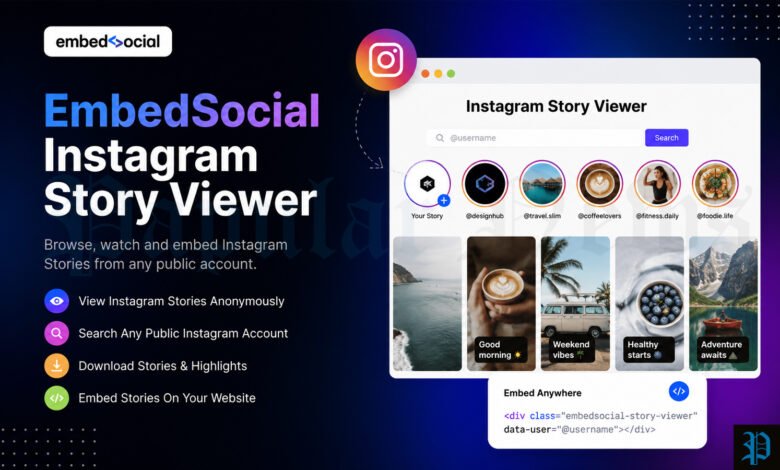
For this article, the most important part is the Instagram Stories widget. This is the part people often call the “EmbedSocial Instagram story viewer”. It works like a small player on your site. A visitor taps a round picture or a card, and your stories open in a full-screen view.
Is EmbedSocial Really an Instagram Story Viewer?
The short answer is yes and no. It depends on what you want.
If you want to watch other people’s private or public stories without being seen, EmbedSocial is not the right tool. It does not work like that. It cannot show stories from accounts that you do not manage. A guide from Curator, a rival tool, also makes this clear. It says you cannot directly embed another person’s story. You can only show your own stories, or stories that people shared with you in a way Instagram allows.
If you want to show your own stories on your website, EmbedSocial is a strong choice. In that case, the word “viewer” means a player that your visitors use to watch your content. So the phrase fits, but only in that second meaning.
Keep this in mind when you plan your content. Many readers land on a page like this by mistake. A short and honest explanation at the start saves them time and builds trust.
Why Instagram Stories Disappear and Why That Matters
Instagram stories last for 24 hours. After that, they leave the main story bar. You can save some of them as Highlights, but Highlights only show on your profile page. Many website visitors never open your Instagram profile. So your best stories reach fewer people than they could.
A story widget fixes this problem. It places the stories you choose on your own website. People who visit your shop, blog, or business page can watch them there. The stories can stay on your site even after they expire in the app.
This is useful in many cases:
- A café wants to show its daily menu and its behind-the-scenes clips.
- A gym wants to show member wins and short workout videos.
- An online shop wants to show new products in a quick vertical format.
- A travel brand wants to show trips, guest stories, and tour tips.
Stories feel personal and real. They are often shot on a phone and posted fast. That honest style helps new visitors trust a brand. Putting them on your site gives that trust a longer life.
How the EmbedSocial Instagram Story Viewer Works
The process is simple. Here is what happens behind the scenes, in plain words.
First, you connect your Instagram account to EmbedSocial. The tool uses Instagram’s official connection, which is called an API. EmbedSocial explains that you connect the Facebook account that manages your Instagram profile. After that, the platform can read the stories you post.
Next, the tool collects your stories and saves them in your EmbedSocial account. It checks for new stories on a regular basis. According to the company, new stories appear in the widget automatically after you post them. One plugin page says the changes show up in just a few minutes.
Then, you design the widget. You choose the layout, size, shape, and colors. You also choose how the stories behave, for example whether they play on their own.
Finally, you copy the embed code and paste it on your website. From that point, the widget does the work. You post stories on Instagram as usual, and your site updates by itself.
What You Need Before You Start
Before you begin, check a few things. This will save you time later.
An Instagram account that can connect. One of the sources we checked says Instagram requires a Business account to pull stories. If you have a personal or creator account, you may need to switch it to a Business account first. This rule comes from Instagram, not from the widget tool. EmbedSocial’s own pages say you should connect a Facebook account that manages your Instagram profile. So it is smart to link your Instagram account to a Facebook Page before you start.
An EmbedSocial account. You can start with a free trial. The company’s pages do not always say how long the trial lasts, so read the sign-up page when you create your account.
A website where you can add code. The tool works with any platform that accepts an embed block, an iframe, or a small piece of JavaScript. The company lists WordPress, Squarespace, Wix, Weebly, Shopify, Joomla, Magento, and OpenCart as examples. It also mentions WooCommerce and Webflow.
Some stories to show. The widget needs content. If your account has few stories, post a few useful ones first.
Main Features of the EmbedSocial Story Widget
Based on the company’s pages and independent reviews, these are the main features.
Automatic syncing. New stories flow into the widget without extra work. The tool also pulls in older stories that are stored in your account.
Longer life for your stories. The widget keeps your stories on your site after the 24-hour limit in the app.
Story Highlights. You can group stories into themes, just like Highlights on Instagram. For example, you can make groups for products, events, and customer reviews.
Archive of past stories. After you connect your account, the tool saves your stories. You can later mix stories from different dates to build a new widget.
Several layouts. There are more than five layout styles. Some show small round pictures that grow when you click them. Others show a bigger view that moves through the stories on its own.
Lightbox player. A lightbox opens the story in a large, full-screen window. This is great for mobile phones.
Call to action buttons and links. You can add buttons and outside links to single stories. This helps you lead visitors to a page, a form, or a product.
Moderation. You decide which stories appear and which stay hidden.
Custom CSS. If you know a little code, you can fine-tune the design so it matches your site.
Mobile-friendly design. The widget is made for swiping on a phone. This matters because many visitors use phones.
Mixed social walls. You can combine stories with posts from other networks if you want one busy social section.
Widget Types You Can Choose
EmbedSocial lists five Instagram story widget types. Each one suits a different goal.
Slider. Stories move across the screen in a row. Visitors can swipe or click to see more. This is good for a homepage banner.
Lightbox. Stories open in a large pop-up window. This gives a full-screen feel and works well on phones.
Story List. Stories appear in a list or grid. Visitors can pick the one they want to watch.
AMP List. This is a version made for AMP pages. These are fast mobile pages. The company says AMP conversion is a paid feature on some plans.
Slider List. This mixes the slider and the list styles.
The company also offers a popup-style template. It shows a small floating story avatar with a short “Watch Stories” label. When a visitor clicks it, the stories open. This is helpful if you want stories on a page without using a lot of space.
If you are not sure which type to pick, start with the slider or the lightbox. Test it on your phone. Then try another style if it does not feel right.
Easy Setup Guide: Step by Step
Here is a simple process that works for most websites.
- Create your account. Go to the EmbedSocial site and start a free trial.
- Connect Instagram. Choose Instagram as your source. Log in through Facebook and give the permissions the tool asks for. Pick the Instagram profile that you manage.
- Select stories as the content type. Pick Stories so the tool collects stories, not only regular posts.
- Create a new widget. Click the button to create a widget and choose a template.
- Customize the look. Change the layout, colors, size, and shape. Turn autoplay on or off. Add buttons if you want visitors to take an action.
- Choose which stories to show. Use the moderation tools to hide stories that do not fit.
- Copy the embed code. The tool makes the code for you.
- Paste the code on your website. Add it to the page where you want the stories to appear.
- Publish and test. Open the live page on a phone and on a computer. Check that the stories play well.
The whole process often takes less than half an hour. The most time goes into choosing the right design and content.
Adding the Widget to Squarespace
The company gives clear steps for Squarespace. After you design the widget, open the page in the Squarespace editor. Click the plus icon and choose Embed. Click the code icon, paste your EmbedSocial code, and click Set. Then save the page. The stories update on their own after that.
Adding the Widget to WordPress
For WordPress, there is a plugin called EmbedStories. It lets you add your stories with a short code, called a shortcode. You need an EmbedSocial account to use it. The plugin page says it can fetch your latest story, archive your stories, and let you build a gallery from several stories. Settings include showing the latest story, showing a story from a certain date, ordering by date, and setting the autoplay time.
Note that this plugin has a modest number of installs, and its last update is old. Check the plugin page for the current status before you rely on it. If you prefer, you can skip the plugin and paste the embed code into a custom HTML block instead.
Moderation: Choosing Which Stories Appear
Not every story belongs on your website. Stories are often casual. Some are time-based, like a flash sale or a “sold out” notice. If such a story stays on your site for weeks, it can confuse people.
A story from the Curator guide shows this problem well. A business used automatic approval, and a “sold out” story stayed live after the product came back in stock. The owner then switched to manual approval and the problem stopped.
EmbedSocial lets you handpick the stories in your widget. You can also reorder them, so they do not need to follow the date. This is very helpful. You can put your best and most lasting stories first.
Here is a simple rule to follow. Show stories that stay true over time, such as how-to clips, product demos, customer thanks, and event recaps. Hide stories with a date, a deadline, or a limited offer, unless you plan to remove them quickly.
Story Highlights and the Archive
The archive is one of the most useful parts of this tool. Once you connect your account, EmbedSocial saves your stories. You can then use them again as often as you like.
This lets you build “highlights” on your website, just as you would on Instagram. For example, a bakery could make three groups: “Cake Orders”, “Behind the Scenes”, and “Happy Customers”. Each group becomes its own widget, and you can place each one on the page where it fits best.
Keep in mind that the tool saves stories from the time you connect your account. It also says it can pull active and archived stories. If you want a full history, connect your account early and keep it connected.
Shoppable Stories and Call to Action Buttons
If you sell things online, this part is worth your time. EmbedSocial lets you add custom “Buy” buttons to media. When a visitor clicks, they go to a checkout page for that product.
You can also add simple call to action buttons to stories. These can lead to a sign-up form, a booking page, a new blog post, or a sale page.
A few tips for better results:
- Use short, clear button text, such as “Shop now” or “Book a spot”.
- Link to the exact product or page that the story shows.
- Do not add a button to every story. Use them where they make sense.
- Check that the link works on a phone.
Pricing and Free Trial
Prices can change, so always check the official pricing page before you buy. Here is what we found during our research.
- One EmbedSocial page for Squarespace lists a plan at $29 per month. It says this plan includes the main story features, such as auto-sync, Highlights, shoppable stories, custom CSS, and a lightbox viewer.
- The Curator guide also lists the paid tier at $29 per month. It says the free story widget has automatic syncing and WordPress shortcode support, while templates, gallery layouts, and AMP conversion are paid features.
- A Japanese version of the company blog listed a starting price of 7,150 yen per month. That plan allowed up to three sources, and one Instagram account counted as one source.
- The company offers a free trial. It also says you can cancel your plan.
There is one important rule. If you cancel your plan, the story widget on your website is removed. So do not cancel before you have a plan to replace it.
Because the free plan and the paid plans may differ by region and by date, we suggest this: start the free trial, build one widget, and test it on your real website. Then decide if the paid features are worth it for you.
Who Should Use This Tool?
EmbedSocial is a good match for several groups.
Online shops. Stories fit well on product pages, the homepage, and landing pages. Shoppable buttons help turn views into sales.
Local businesses. Cafés, salons, gyms, and clinics can show daily life and new offers.
Creators and personal brands. If you tell stories on Instagram, you can bring them to your portfolio or blog.
Agencies. An agency can set up story widgets for clients and keep their sites fresh without extra work.
Travel and event brands. Short clips from trips and events make a site feel alive.
It may not be the best choice if you only post stories now and then. A widget with old content looks tired. One independent writer warned that some clients pay for months without noticing that their widget still shows old stories, because nobody posted anything new. So plan to post stories on a regular basis.
Real Examples from Brands
The company shares a few case studies. Remember that these are chosen by the company, so they show the good side.
Olympic Group. This company put a story section on its official homepage. It syncs featured products automatically. It chose the vertical format because most of its visitors use smartphones.
Stellar Hollywood. This accessories and fashion brand also added stories to its homepage. The story format fits small spaces on mobile screens, which helps when a shop page is crowded. Clicking a story makes it bigger.
Kishispo Kemari87. This is a soccer and futsal store in Japan. It added stories to its online shop. The team said the reasons were fresh updates for visitors and the chance to show the mood of the real store.
TrovaTrip. A travel company used the widget to show customer stories. It reported a 12 percent rise in booking conversions in four weeks. This is a claim from the customer, and nobody has checked it independently. Your own results may be different.
Tips for Better Results
A tool is only as good as the content you feed it. These tips can help.
Post on a regular schedule. Even three or four good stories a week keep the widget fresh.
Shoot vertical video. Stories are made for tall screens. Wide video looks cropped in many templates.
Keep each story short. Visitors on a website are busy. Aim for clear, quick clips.
Add text and a clear message. Many people watch without sound. Short on-screen text helps them follow along.
Place the widget in a visible spot. The company suggests putting it near the top of the page, such as under the main banner. A short headline above it can also help.
Test on a phone. Most visitors will see it there. Check the speed, the size, and the swipe feel.
Review the widget every week. Remove old or wrong stories. This takes five minutes and protects your image.
Match your brand. Use your colors and shapes. A widget that fits your site looks more trusted.
Do not overload the page. One well-placed story widget works better than three on the same page.
Common Problems and Simple Fixes
Even a good tool can give you trouble. Here are the most common issues and what to try.
The widget shows old stories. Check that your Instagram account is still connected. Then post a new story and wait a few minutes. If nothing changes, reconnect the account.
The account will not connect. Make sure your Instagram account is a Business account and is linked to a Facebook Page. Also check that you log in with the Facebook account that manages the page.
The stories look cut off. Pick a template that handles tall video well. Also check the size settings.
The code does not show on the page. Some website editors need a special embed or HTML block. Paste the code there, not in a plain text box.
The page loads slowly. Place only one widget on the page. Also test your page speed after you add it.
The widget disappeared. This can happen if your plan ended. Check your billing status in your EmbedSocial account.
If these steps do not help, use the support chat in your account. The company says it offers real-time help through a chat icon.
Privacy and Permission Rules
When you show stories on your site, think about the people in them. If a customer appears in your story, ask for their approval first. This is polite, and in some places it is also the law.
You also cannot embed a story that belongs to another user. If a customer tags you in a story, you may be able to reshare it to your own Business account, if they allow resharing. After that, it can enter your widget. EmbedSocial says it has rights management tools for user content, so look at those if you plan to use customer stories.
Also be careful with data rules, such as GDPR in Europe. If your widget shows people or collects data, read the legal rules for your country. When in doubt, ask a legal expert.
Alternatives to Consider
EmbedSocial is not the only option. A few other tools do a similar job.
Taggbox. It is close to EmbedSocial in price. It leans more toward gathering content from many networks and hashtag campaigns than toward pure story replay.
SociableKIT. This tool also shows social content on websites.
Curator. Curator is a social media aggregator. Its free plan supports Instagram stories, but it refreshes only once a day. Its Pro plan refreshes every 60 minutes.
Before you pick any tool, check four things. Make sure stories are included in the plan you want, because some vendors keep them for higher plans. Check how often the tool refreshes. Make sure you can choose which stories appear. Finally, test how it handles tall video.
Pros and Cons
Pros
- It is easy to set up, and you do not need to write code.
- It syncs new stories on its own.
- It keeps stories online after 24 hours.
- It has several layouts and a lightbox player.
- It offers moderation, Highlights, and shoppable buttons.
- It works with many website platforms.
Cons
- The best features need a paid plan.
- If you cancel, the widget disappears.
- It only shows stories from accounts you manage.
- You need a connected Business account.
- Old content can make your site look outdated if you stop posting.
Conclusion
The EmbedSocial Instagram story viewer is not a tool for spying on other accounts. It is a smart way to show your own stories on your own website. It connects to Instagram, saves your stories, and plays them in a clean player that people can use on any device. You can pick the layout, choose the stories, add buttons, and even sell products from inside a story.
The setup is quick. You connect your account, build a widget, and paste the code. After that, the tool does most of the work. The biggest keys to success are simple. Post good stories often, review what shows on your site, and test on a phone.
If you run a shop, a local business, or a personal brand, try the free trial first. Build one widget, place it on your homepage, and watch how visitors react. If it fits your needs, the paid plan may be worth it. If not, you can look at other tools. Either way, you now know how the tool works and what to expect.
Frequently Asked Questions
What is the EmbedSocial Instagram story viewer?
It is a widget that shows your own Instagram stories on your website. Visitors can watch the stories in a player without leaving your page. It is not a tool for watching other people’s stories.
Can I use EmbedSocial to watch someone else’s Instagram story?
No. The tool only works with accounts that you manage and connect. It cannot show private or public stories from other accounts. If you want to show a customer’s story, they must tag you, and you may reshare it if they allow it.
Is EmbedSocial free to use?
The company offers a free trial, and one review says there is a free Instagram stories widget with basic features. Many advanced features need a paid plan. One page lists a plan at $29 per month, but prices can change. Always check the official pricing page.
Do I need a Business account on Instagram?
According to one source we checked, Instagram requires a Business account to pull stories. Personal and creator accounts may need to switch. EmbedSocial also asks you to connect the Facebook account that manages your Instagram profile. Check the sign-up steps for the latest rules.
Will my stories stay on my website after 24 hours?
Yes. That is one of the main benefits. The widget keeps the stories you choose on your site, even after they leave the story bar on Instagram. You control which ones stay.
How fast do new stories appear in the widget?
The company says new stories sync automatically after you post them. One plugin page says the change shows in just a few minutes. The exact speed can depend on your plan and your setup.
Which website platforms work with EmbedSocial?
The company names WordPress, Squarespace, Wix, Weebly, Shopify, Joomla, Magento, and OpenCart. It also mentions WooCommerce and Webflow. In general, any platform that lets you add an iframe or JavaScript code should work.
Do I need to know how to code?
No. You can build a widget with simple settings and copy the code to your page. If you know some CSS, you can add custom styles, but this is optional.
What happens to my widget if I cancel my plan?
The company says that if you cancel, the story widget on your website is removed. Plan ahead before you end your subscription. Switch to another tool or remove the widget code from your page.
Can I sell products through my story widget?
Yes. The tool offers shoppable stories. You can add a custom “Buy” button to a story, and visitors are sent to a checkout page. You can also add call to action buttons that lead to other pages.
MORE INFORMATION STAY CONNECT FOR : PAPULAR NEWS
